How to Add Your Business to ChatGPT: Setup, Verification, and SEO Insights

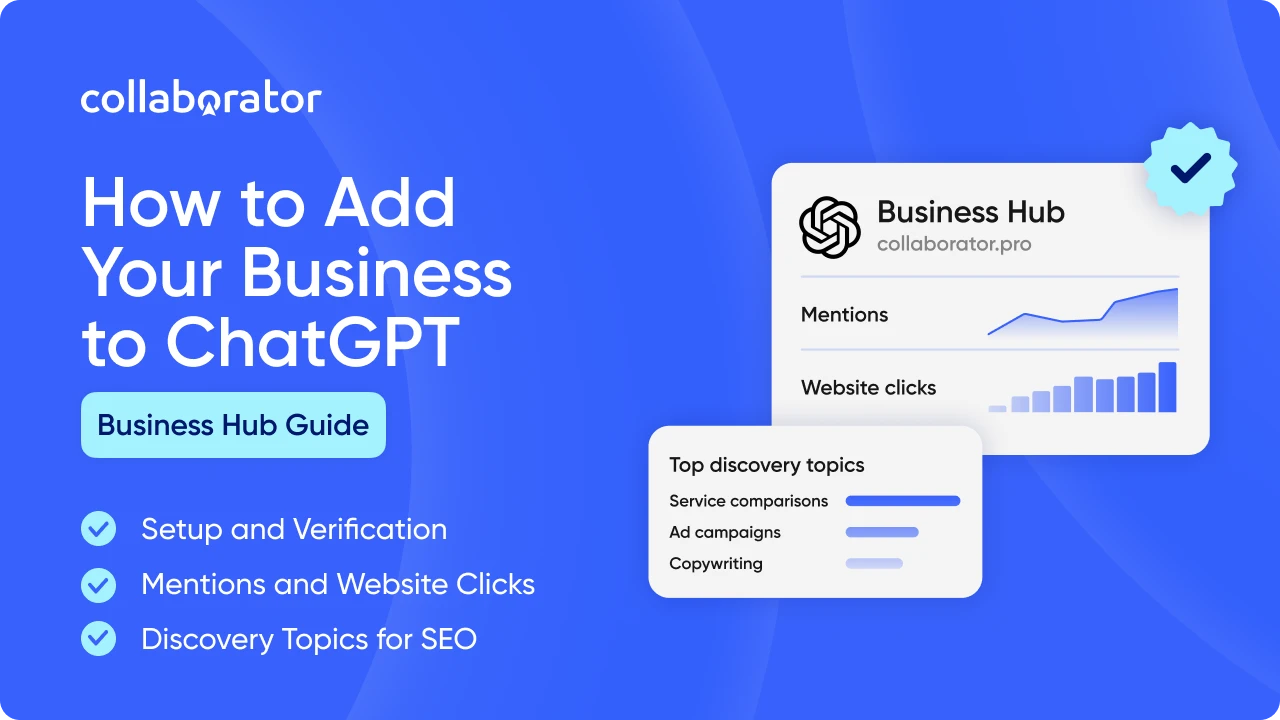
You can now add your business to ChatGPT. OpenAI launched Businesses in ChatGPT in beta on November 10, 2026, giving eligible businesses a way to claim their profile through Business Hub.
The new feature shows how often ChatGPT cites your website, how many people click through, and which topics bring you up. For SEOs, it’s the first ChatGPT visibility data that comes from OpenAI itself.
Collaborator’s profile is already claimed and verified, so in this guide we’ll use our own dashboard as an example. Below, you’ll find:
- What Business Hub gives you and who can use it
- How to add and verify your business, step by step
- What mentions, website clicks, and discovery topics count
- How to use discovery topics in your SEO and GEO work
- A checklist for your first 30 days
Quick Facts
|
Launched |
November 10, 2026 (beta) |
|
Where to find it |
ChatGPT sidebar → Business Hub |
|
Cost |
Free. No Ads account or ChatGPT Enterprise plan needed |
|
Verification |
Business phone (SMS or call), business email, DNS TXT record, or Shopify |
|
Identity check |
Persona. Required for insights and profile edits, and gives you the blue verified badge |
|
Metrics |
Mentions, website clicks, discovery topics |
|
Insights window |
7 or 28 days |
|
Business Agents |
Eligible US ecommerce and online service businesses only |
|
Team access |
The admin can invite teammates and give an agency access |
What Is Businesses in ChatGPT?
Businesses in ChatGPT lets you claim your business, manage the information ChatGPT can use about it, and see how people find you there. Think of it as a mix of Google Business Profile and Search Console.
Here’s what it looks like in Collaborator’s account:
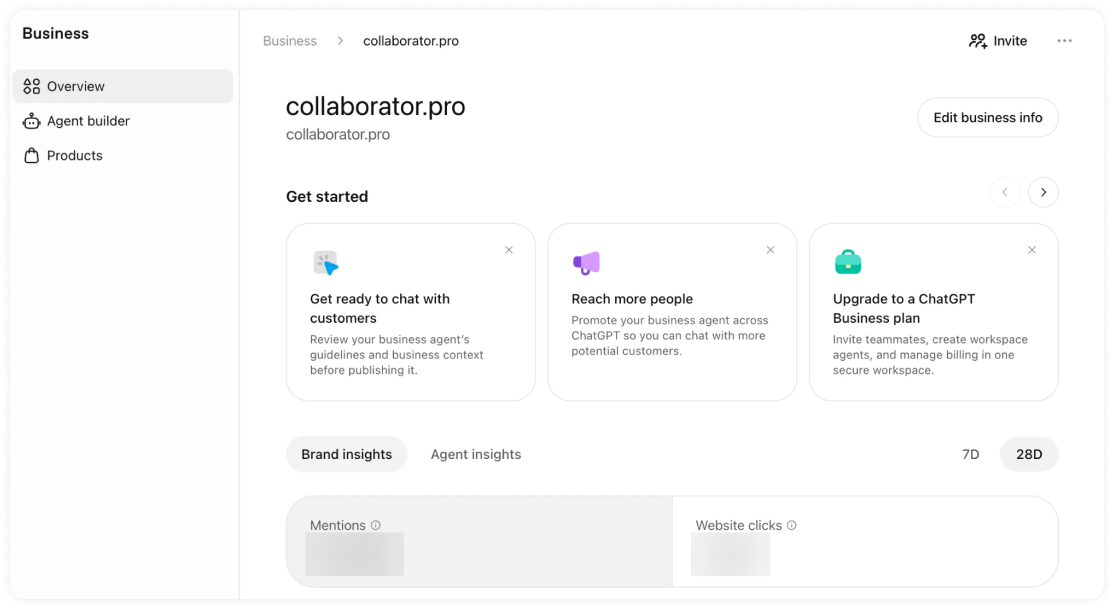
Everything happens in Business Hub. Its menu has three sections:
- Overview: your profile and insights
- Agent builder: a branded chat that answers customer questions about your products and policies (eligible US ecommerce and online service businesses only)
- Products: product feeds with prices and availability
Naming note: Business Hub has nothing to do with ChatGPT Business, OpenAI’s paid workplace plan. The overview page even shows an “Upgrade to a ChatGPT Business plan” card, which makes the two easy to mix up.
Why Claim Your Business in ChatGPT?
For SEOs and business owners, the data is the main reason to claim. Before this launch, there was no official way to list your business on ChatGPT, and visibility data came only from third-party tools, most of which sample prompts.
Business Hub now gives you that data straight from OpenAI. Here’s the full list of benefits, and who gets the most out of each:
|
Benefit |
Why it helps |
Best for |
|
Control over your business details |
ChatGPT can use the description, category, and policies you provide |
Every business |
|
First-party ChatGPT data |
Mentions and clicks come directly from OpenAI |
SEOs reporting on AI visibility |
|
Discovery topics |
Shows the themes ChatGPT connects you with |
Content and SEO teams |
|
Accurate product information |
Prices and availability come from your feed |
Ecommerce |
|
Agency access |
Admins can give an agency access to the profile |
Agencies and in-house teams |
Quick note: Claiming doesn’t guarantee higher placement or more recommendations. ChatGPT still makes its own recommendations and comparisons.
Who Can Add Their Business to ChatGPT?
To get your business on ChatGPT, three things need to be true:
- You own the business or are authorized to represent it
- The business is located where ChatGPT is available
- OpenAI supports verification for your type of business
|
Business type |
Can it claim? |
Good to know |
|
Online business with a website |
Yes |
You can add a new listing if ChatGPT doesn’t have one |
|
Local store or restaurant |
Existing US listings only |
Adding new local listings isn’t available yet |
|
Company with several brands |
Yes, one brand at a time |
Claiming the main brand doesn’t claim its locations |
|
Business outside the US |
Depends on location and type |
Some early claims outside the US went onto a waitlist |
How to Add and Verify Your Business in ChatGPT
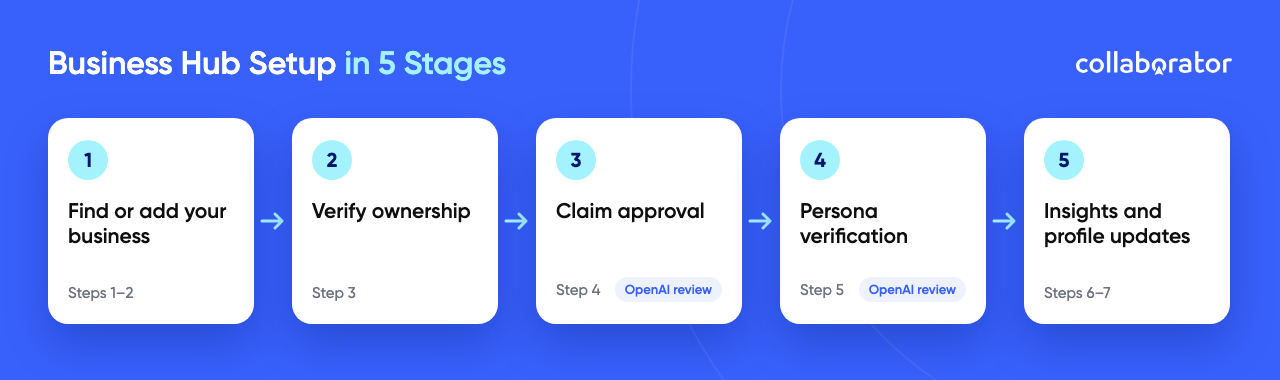
Setup takes seven steps, with two pauses while OpenAI reviews your claim and your identity. Here’s the whole process, with screenshots from our own setup:
Step 1. Open Business Hub
Sign in with the ChatGPT account you’ll use to manage the business. Open Business Hub from the sidebar, or use the direct Business Hub link if it isn’t shown there.
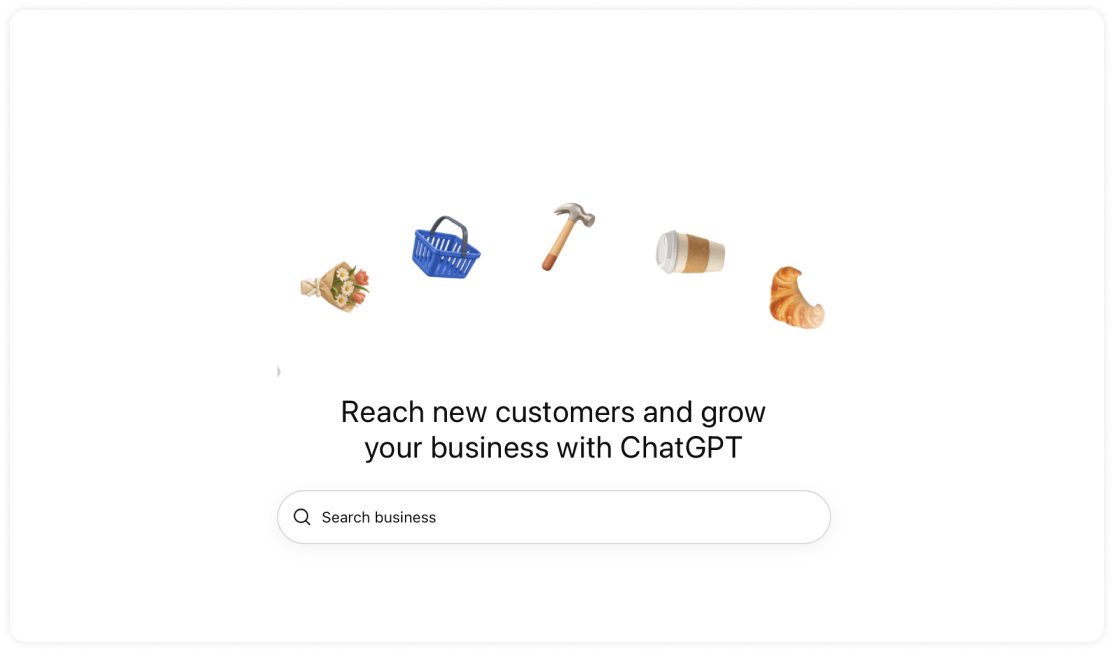
💡 If you’re setting this up for a client, agree on who will manage the account before starting.
Step 2. Find Your Business
Search for your business by name and select the matching listing. Confirm the ChatGPT account that will manage it.
You might run into one of these situations:
- No listing found. If you run an eligible online business, you’ll see an option to add it.
- Contact support. The listing is locked. Use the button to request access.
- Already claimed by someone else. Open the profile, click the ••• menu, and choose Dispute ownership. You’ll need to pass Persona verification.
- Claim invitation by email. Open the personal link and sign in with the email address that received it.
If ChatGPT doesn’t find a listing, you’ll be prompted to answer how customers reach you: at a physical location or through a website.
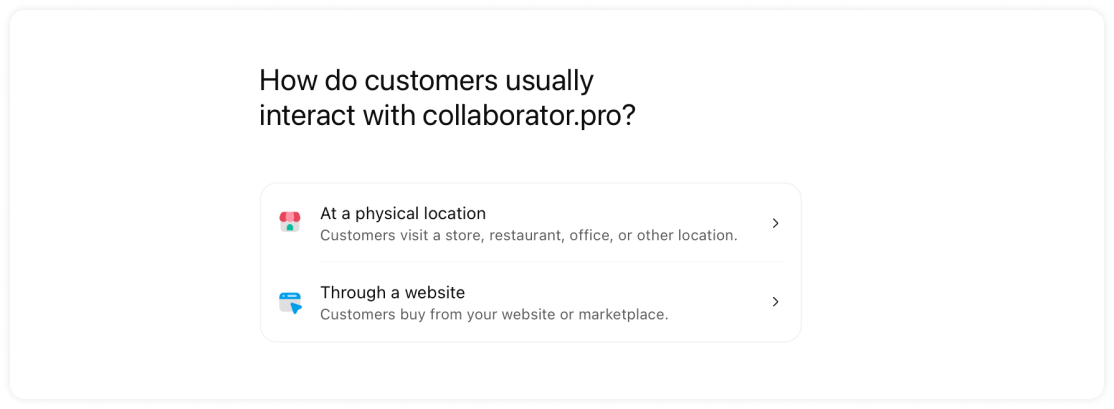
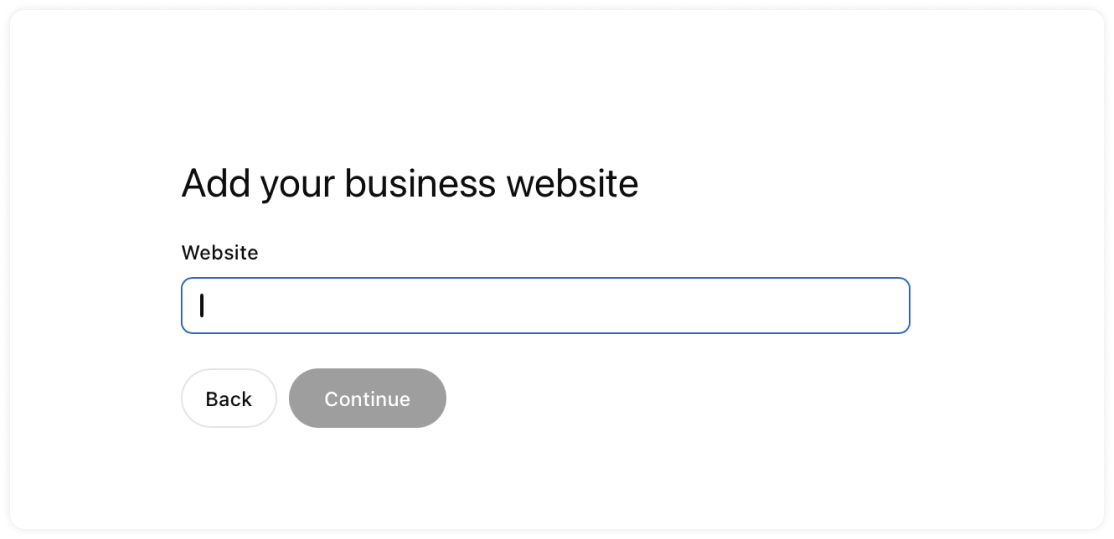
Online businesses then add their website URL.
Step 3. Verify Your Business
ChatGPT shows the verification methods available for your business. Pick the one you can complete fastest.
|
Method |
What you need |
Best for |
|
Business phone |
Access to the listed number for an SMS or automated call |
Local businesses |
|
Business email |
An inbox connected to the business |
Small teams |
|
Website domain |
Access to DNS settings to add a TXT record |
SEOs and agencies with DNS access |
|
Shopify store |
A login to the Shopify store you’re claiming |
Shopify merchants |
If you choose the website domain method:
- Copy the TXT record that ChatGPT shows you.
- Add it to your domain’s DNS settings. The type, host, and value must match exactly.
- Wait for the change to appear. DNS updates can take a while.
- Go back to ChatGPT and click Verify domain.
💡 If a developer or the client’s IT team manages DNS, send them the record.
Step 4. Wait for Claim Approval
OpenAI reviews each claim and emails you the decision or a request for more information. There’s no published review time.
To stop the process, click Cancel claim while the claim is under review.
Step 5. Complete Identity Verification With Persona
An approved claim gives you access to the profile. You’ll still need Persona verification before you can:
- Publish changes to your business information
- Connect a product feed
- View insights
- Create a Business Agent
Click Verify with Persona, then Continue to Persona, and follow the instructions. You may be asked for:
- A government-issued ID
- Business registration information
- Proof that you can represent the business
Used a different method in Step 3? You can do this later from your business overview. Click Complete verification with Persona.
Once OpenAI approves it, your profile gets a blue check. Claiming alone doesn’t add the badge.
If verification fails, check that your business name, address, and registration or tax number match your official records. Then select Try again if that option is available.
Watch out: if you use Persona to create a brand-new profile, OpenAI’s approval publishes it automatically. There’s no separate publish step, so finish your details before you submit.
Step 6. Update Your Business Profile
If needed, click Edit business info in the top right corner of the overview page. The Edit business details form opens with five tabs:
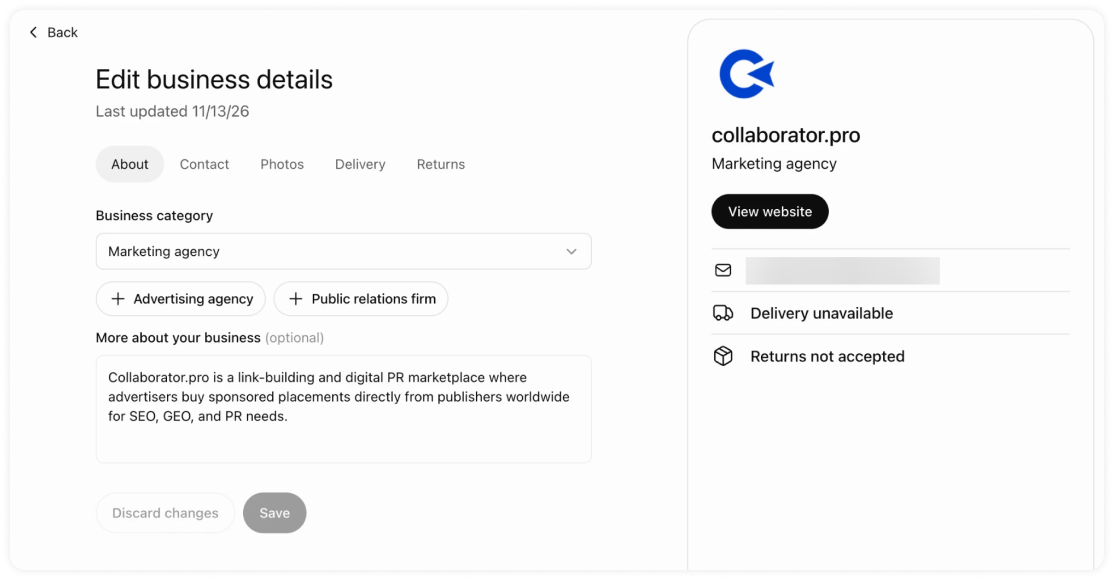
- About: your main business category, related categories, and a short description
- Contact: how customers can reach you
- Photos: your logo and cover photo
- Delivery: your delivery policy
- Returns: your return policy
The preview on the right shows how your profile will look in ChatGPT. Click Save when you’re done.
OpenAI reviews changes before they go live, and updates can take time to appear in answers.
💡 Keep the details consistent with your website and Google Business Profile. ChatGPT may use those sources as well.
Step 7 (Optional). Connect Products and Invite Your Team
- Products: share prices and availability through a CSV feed, a hosted feed URL, or Shopify. A feed won’t guarantee that ChatGPT recommends your products.
- Team: click Invite at the top of the overview page to add teammates or an agency. Each person signs in with their own ChatGPT account.
What Metrics Can You Track in Business Hub?
Business Hub tracks three metrics: mentions, website clicks, and discovery topics. You’ll find them under Brand insights on the overview page, for the last 7 or 28 days.
Mentions and clicks appear as totals at the top, with a mentions chart below them. This is how the chart looks on our dashboard:
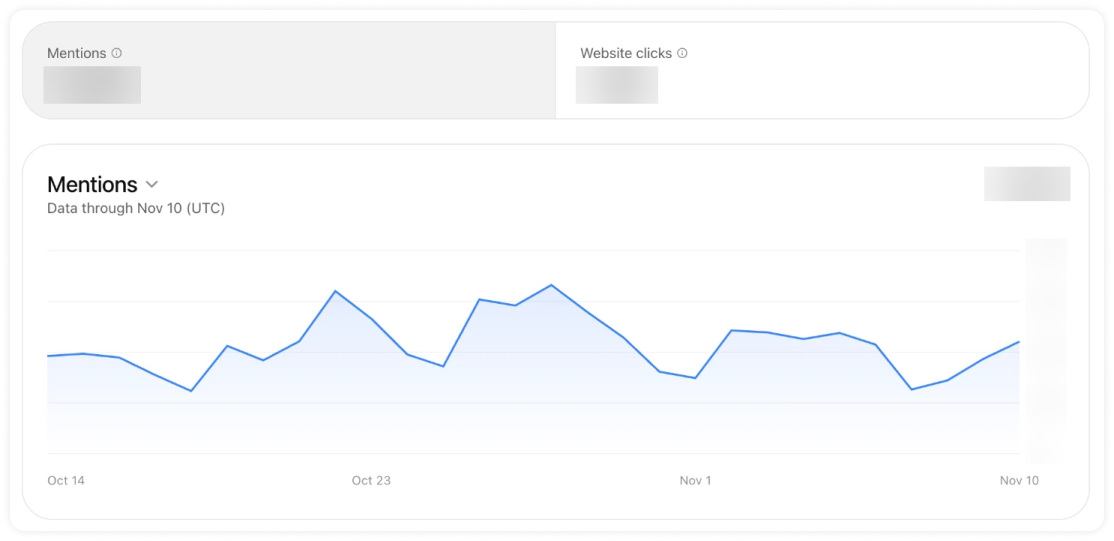
The table below shows what each metric counts and what it won’t tell you.
|
Metric |
What counts |
What it won’t tell you |
|
Mentions |
Online business: ChatGPT references your website. Local business: ChatGPT shows a result for your location |
Mentions of your brand name without your site, or how often competitors appear |
|
Website clicks |
Clicks from ChatGPT through to your website |
Whether the visit loaded or converted |
|
Discovery topics |
Common themes in ChatGPT answers that mentioned or cited your business |
Individual prompts or what the user intended |
Website Clicks: What Happens After the Click?
Website clicks show how often people click through from ChatGPT to your site.
💡 To see what they do next, check your ChatGPT referral traffic in GA4 over the same dates. Do those visits lead to sign-ups, inquiries, or purchases?
The numbers may differ. Someone might close the page before it loads or block analytics, so a click won’t always show up as a session in GA4.
How to Use Discovery Topics in Your SEO and GEO Work
One of the metrics you get in Business Hub is discovery topics. These are common themes in ChatGPT answers that mentioned or cited your business.
This is how they look in our account:
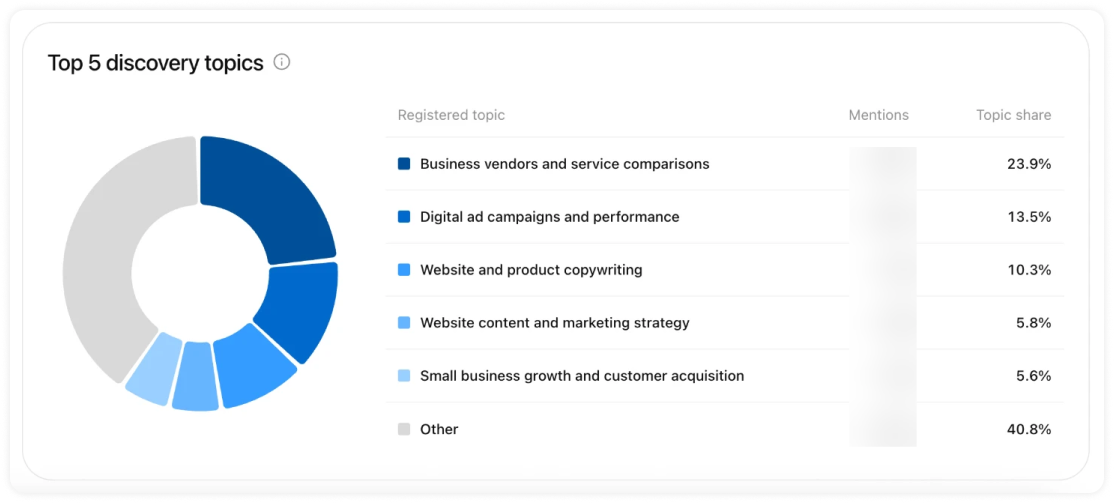
The table lists your top five themes with their mention count and topic share. Everything else is grouped under “Other.”
Here’s why they matter:
- They show how ChatGPT sees your business. The themes come from real answers, so they can differ from the keywords you target.
- They show where your mentions concentrate. Topic share tells you which themes bring you up most often.
- They give you topics to investigate. A service missing from the top five may fall under a broader category or “Other.” The list alone doesn’t prove a content gap.
To turn topics into a content plan, map each one to a page on your site. You’ll land in one of three situations:
- The topic matches a strong page. Keep that page updated and well linked internally.
- The topic has no matching page. Check whether your customers need that information before creating one.
- An important topic isn’t listed. It may fall under a broader category or “Other.” Check before deciding your content needs work.
What Business Hub Doesn’t Show
Before you report on Business Hub data, keep these beta gaps in mind:
- No prompts or conversations. You see themes without the prompts behind them.
- No competitor data. Share of voice still needs a third-party tracker.
- Unpublished thresholds. A blank metric can mean activity is below OpenAI’s privacy threshold or data is still loading. It doesn’t necessarily mean zero.
- No profile views on our dashboard. OpenAI’s announcement image shows a profile views metric, but our dashboard only shows mentions and website clicks.
The biggest gap is third-party coverage. ChatGPT may use other sources when it answers questions about your business, such as reviews, comparison articles, and niche publications.
When ChatGPT cites one of those pages instead of your site, Business Hub doesn’t count it. That page still influences how ChatGPT describes you.
Keep in mind that this is the first version of Business Hub. OpenAI calls the launch “an early step” and plans to build more tools over time, so the dashboard will likely show more data later. We’ll update this guide as new metrics appear.
Further reading: ChatGPT also learns about you from other websites. In Do Backlinks Affect Rankings in LLMs and GEO?, we look at how links and third-party mentions shape AI visibility.
Checklist for Your First 30 Days
- ☐ Add your business to ChatGPT and verify it
- ☐ Complete Persona verification to get insights and the blue badge
- ☐ Update the description, category, logo, and policies to match your website
- ☐ Record your 28-day mentions and clicks as a baseline
- ☐ Map each discovery topic to a page on your site
- ☐ List the third-party sites ChatGPT cites when it answers questions in your category
- ☐ Invite your team or agency
Related reading