Team Account in Collaborator: Manage Clients, Teams, and Budgets Efficiently

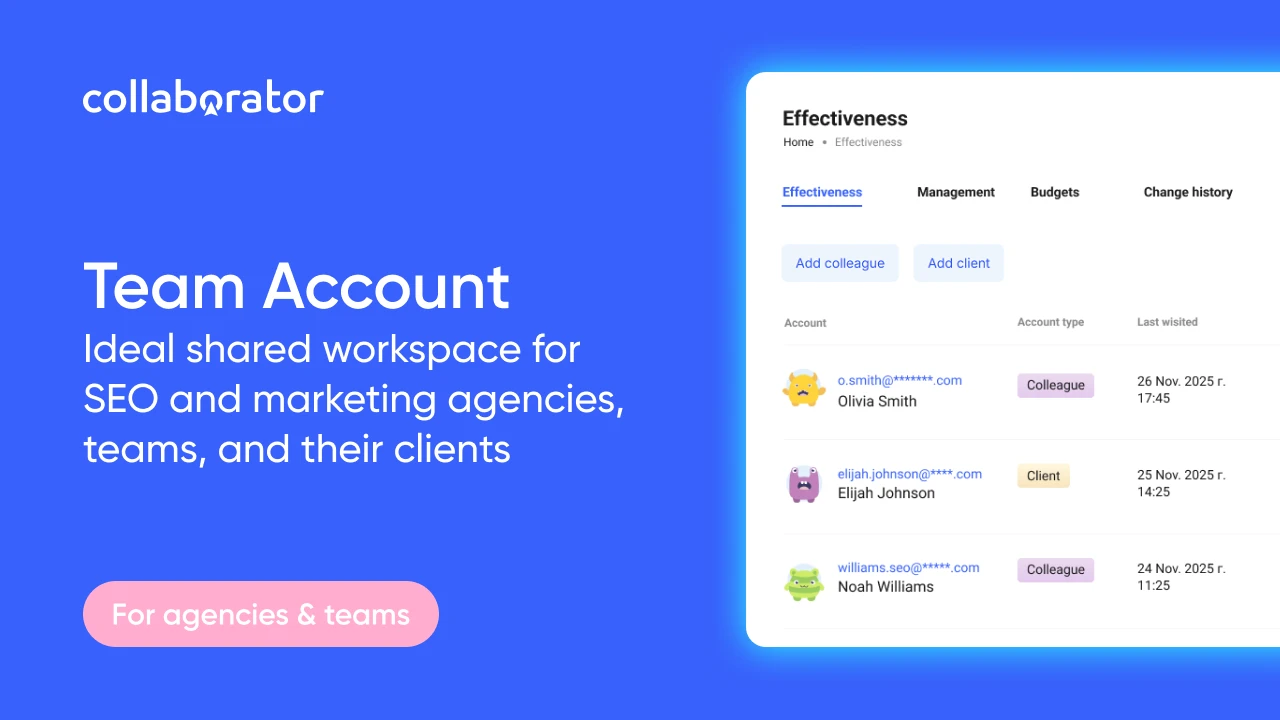
A Team Account is a special offer from Collaborator for SEO and marketing agencies and teams. It helps you organize a transparent and convenient workflow between team members and clients — manage access, control budgets, assign tasks, and track deal progress.
In this guide, we’ll take a closer look at:
- how the Team Account works;
- what opportunities it offers for agencies and teams;
- and how to use it step by step.
What Is a Team Account and Who Is It For
A Team Account is a special type of account that allows agencies and SEO or marketing teams to manage all their processes in Collaborator from one place. It connects colleagues' and clients' accounts, ensuring smooth collaboration.
The main purposes of the Team Account are to:
- organize team workflows;
- control finances and access levels;
- optimize the process of buying placements;
- manage the affiliate program.
This account is perfect for agencies working with multiple clients simultaneously and for SEO teams collaborating on shared projects.
Key Features of the Team Account
By activating the Team Account, you get a full set of tools to manage your team’s and clients’ work. In particular, you can:
- create or connect client projects and manage them from a single account;
- add team members to specific projects in just a few clicks;
- allocate budgets between colleagues and clients;
- monitor balances across up to ten projects at once;
- top up accounts using convenient payment methods;
- receive additional discounts on guest post placements in the Collaborator catalog.
In essence, the Team Account is a control panel for managing all your agency’s or team’s guest posting activities in one convenient interface.
User Roles in the Team Account Structure
Roles within the Team Account are assigned at the account level. The available roles are:
- Admin — the main account that manages everything. It can add or remove users, allocate budgets, manage projects, and monitor the team’s activity.
- Colleague — a role for team members such as SEO specialists, copywriters, or link builders. Colleagues work only on the projects they have been granted access by the Admin. They cannot create new projects or top up the balance on their own.
- Client — a separate, fully functional client account with its own projects, which can be managed either from the Admin or Colleague account. The first reason to create a separate account for a Сlient relates to balance top-ups. If the Client adds funds to their account independently and you are not involved in this process, it’s logical to keep their workspace separate. The second reason is saving on fees through the partner program. For freelance SEO specialists and small teams, when the number of projects grows and manually managing dozens of client accounts becomes difficult and exhausting, Collaborator simplifies the process by allowing you to gather all data in one place and efficiently manage multiple projects at the same time.
How to Create the Team Account
To create the Team Account:
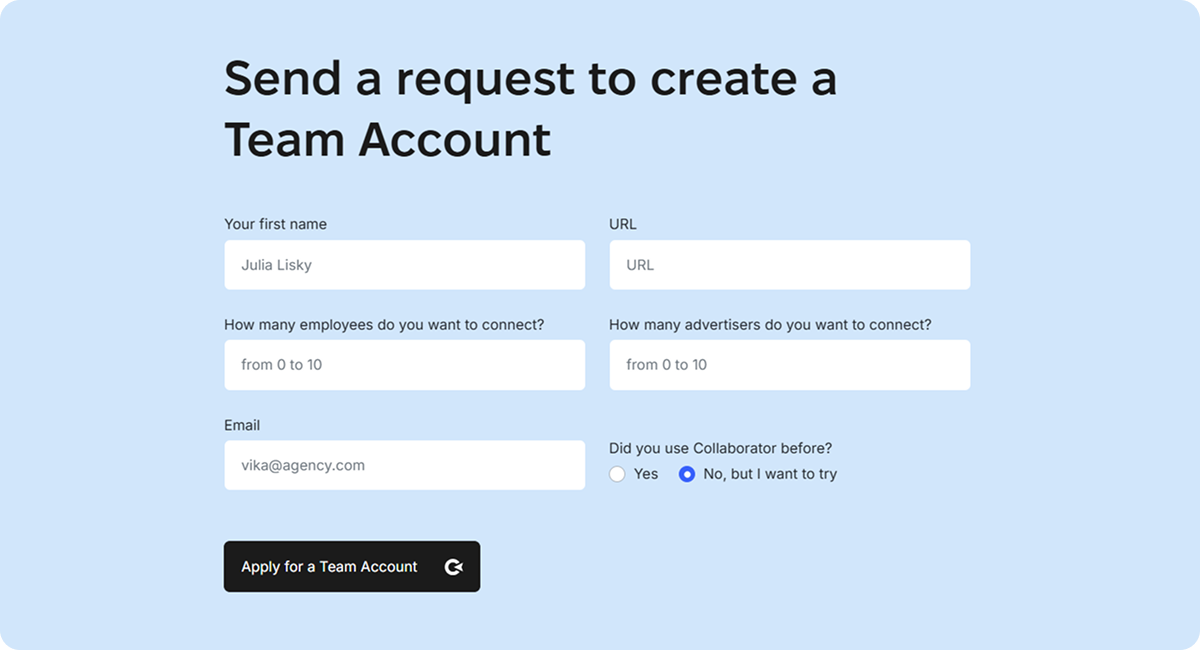
- go to https://collaborator.pro/agency
- fill out a short form with your contact details.
- wait for confirmation from a Collaborator manager.
- once activated, a new Team Account section will appear in your profile.
Done💪 From this point, you can start building your team structure, adding clients, and managing all your work within a single interface.
Overview of Team Account Tabs and Sections
Effectiveness
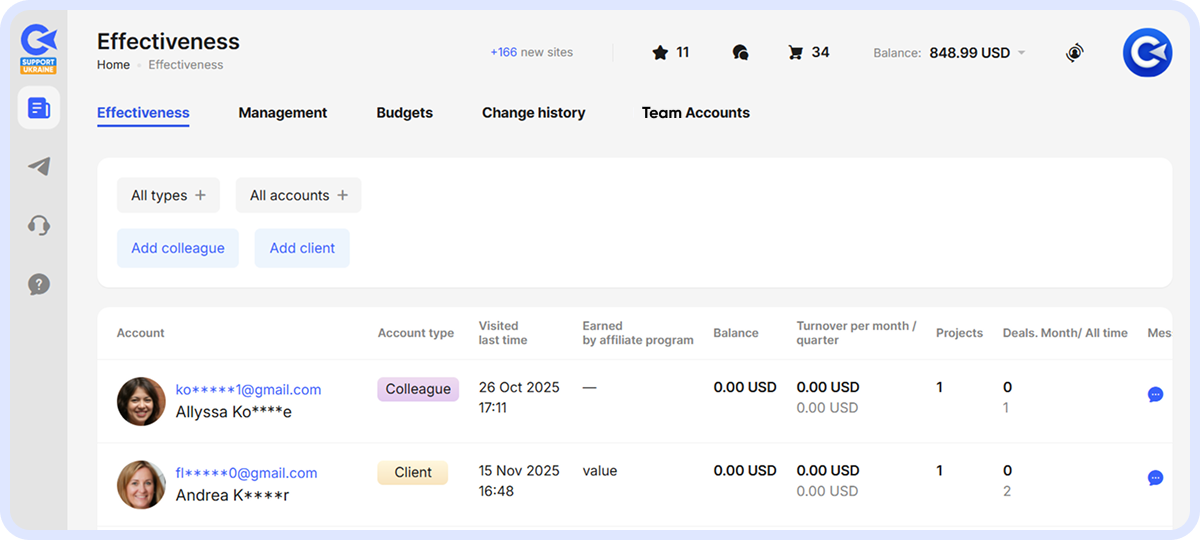
This section contains the main analytics for all connected accounts. Here, you can see:
- who is on your team and their assigned roles;
- when each user last logged in;
- the current balance of each account;
- the number of projects, turnover, and earnings from the affiliate program.
You can also invite new colleagues or clients by sending them an invitation via email.
Important: the Colleague role can only be assigned to a new user who hasn’t previously had a Collaborator account.
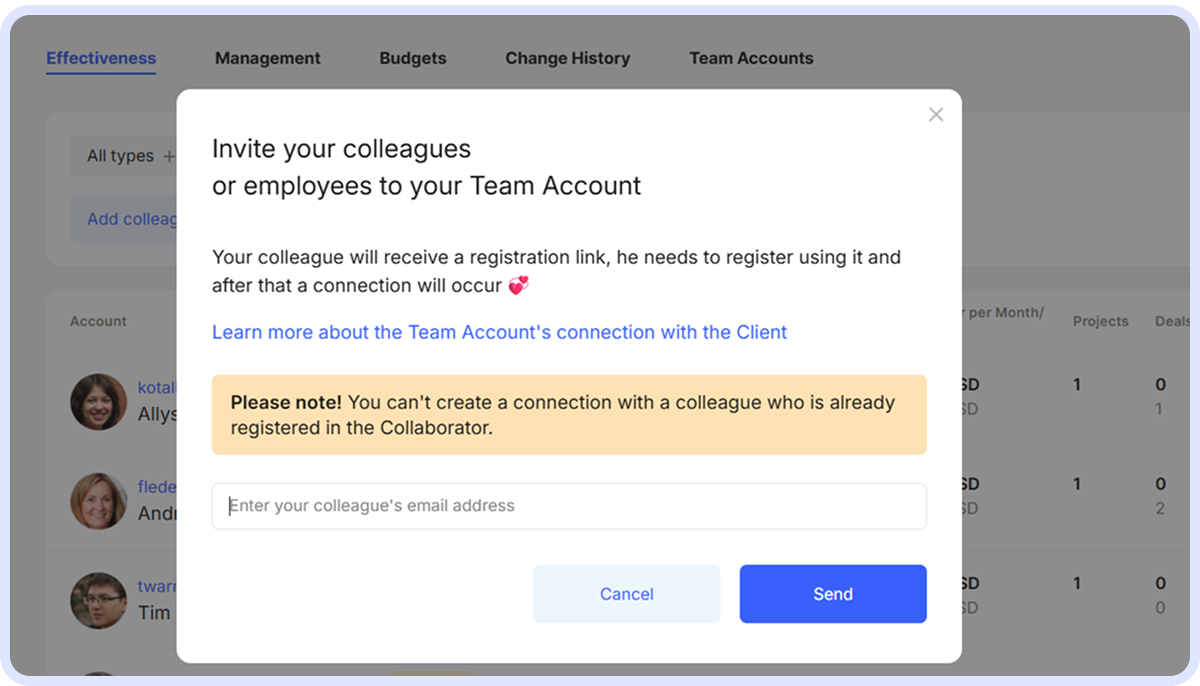
A Colleague can only manage the projects that the Admin has granted them access to. A Client can create projects independently as well.
If you’re inviting a Client, the account can be either new or an existing one. The process is similar: enter their email and send the invitation.
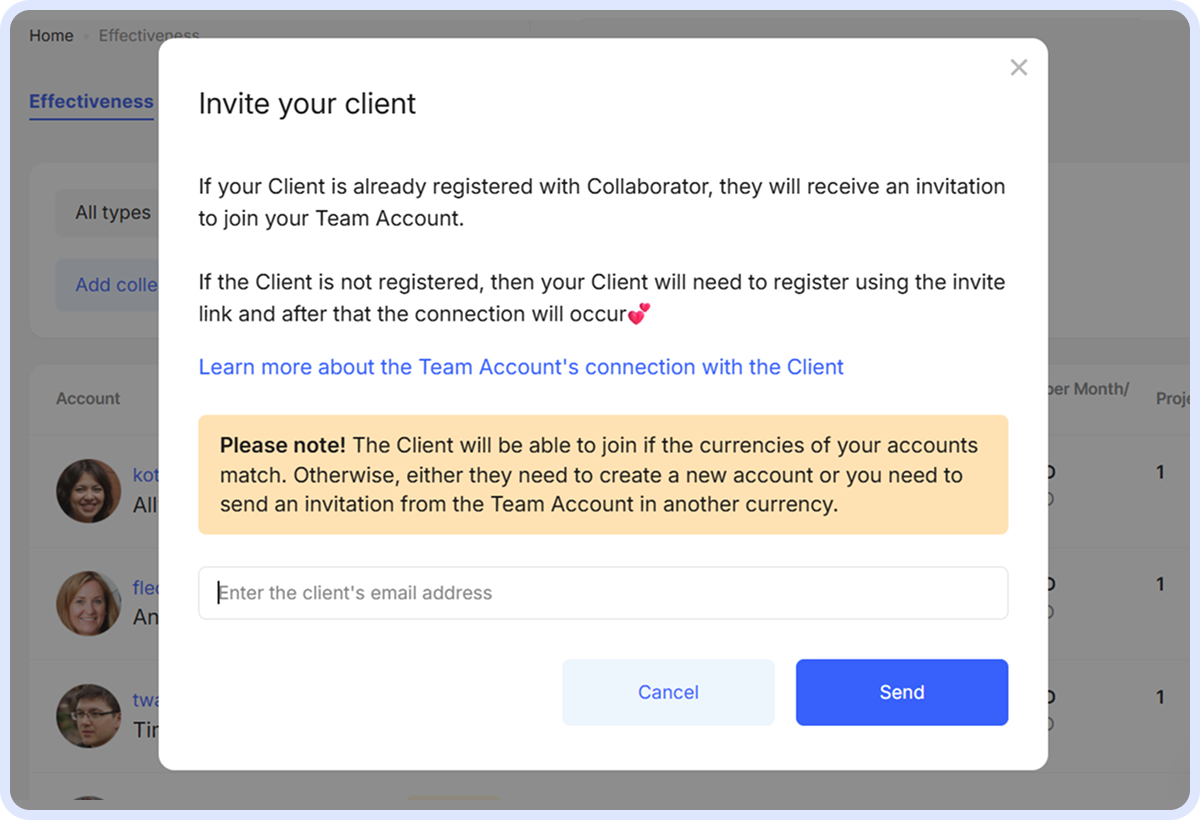
A new Client, like a Colleague, completes their registration via the invitation email. The existing Client must log in to their account and click the confirmation buttons to link their account to the Team Account.
At this moment, the Client is automatically linked to the Team Account within the partner program. Once this connection is activated, the Admin begins receiving a partner commission from the Client’s transactions — this is the point at which the partnership is launched. As a result, system fees are reduced, and the cooperation between the Admin and the Client becomes more financially beneficial for both parties.
Important: A Client can join only if the currencies of your accounts match. Otherwise, they will need to create a new account, or you must send the invitation from the Team Account in the appropriate currency.
Management
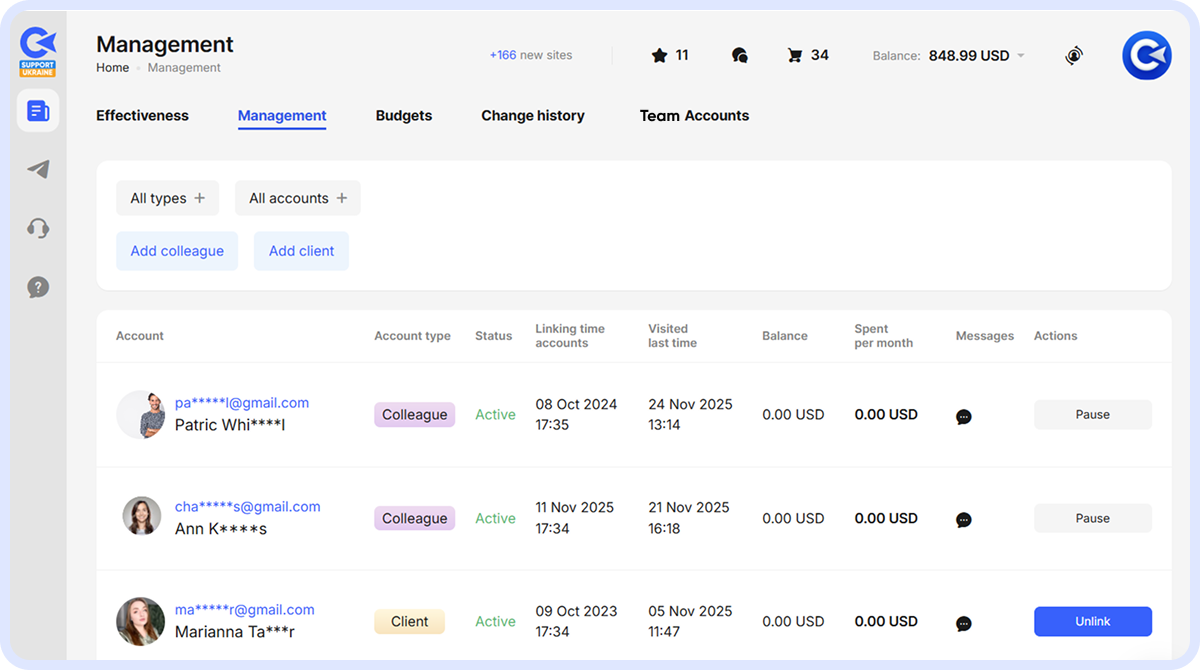
This section is for managing access and connected users.
The Admin can:
- revoke invitations that haven’t been accepted;
- suspend a Colleague’s access (e.g., when the collaboration ends);
- restore access at any time;
- unlink a Client from the account if they move to another agency or want to work independently.
Important: Unlinking does not affect the affiliate program. If the Client continues to top up their balance, the agency will still receive its commissions.
Budgets
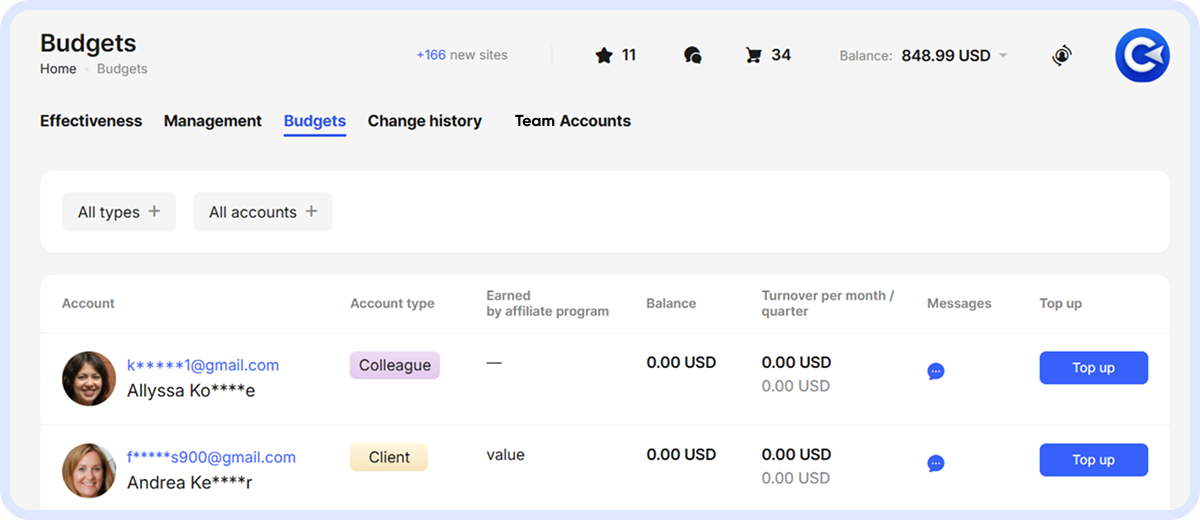
This section covers the financial management of accounts.
The Admin can:
- top up balances for Colleagues or Clients without any fees;
- return unused funds from a Colleague’s balance;
- view each connected user's balance.
Important: Fund transfers from the Admin to a Client are not counted in the affiliate program. Commissions are applied only when a Client account is funded directly.
This tab is useful when you need to transfer funds from the Admin to a Colleague or Client. Simply select the desired account, click Top Up, and enter the amount — there are no internal fees.
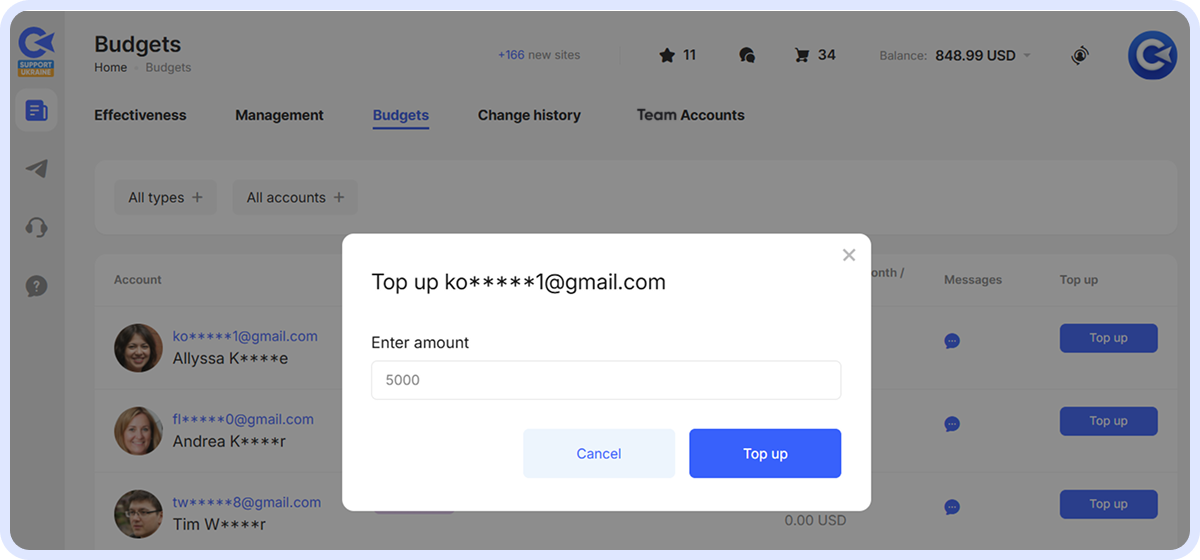
The Admin can reclaim previously sent funds from a Colleague’s account. For example, if the money wasn’t fully spent or was sent in excess. This option is not available for Client accounts: the Admin cannot transfer funds from a Client’s balance back to their own balance.
The affiliate program applies only when a Client funds their account directly. In other words, if the Admin transfers money to a Client, those payments do not generate affiliate commissions.
Change History
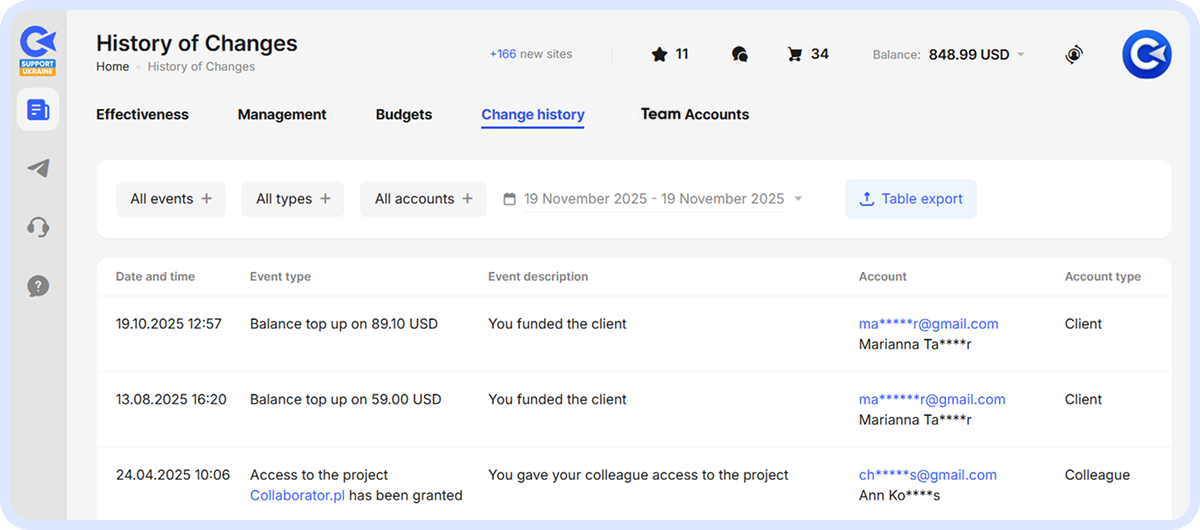
This section records the Admin's chronological activities. You can see who granted access to whom, which invitations were sent, and other actions. If the Admin needs to check back and see where they left off, this tab will help.
Team Accounts
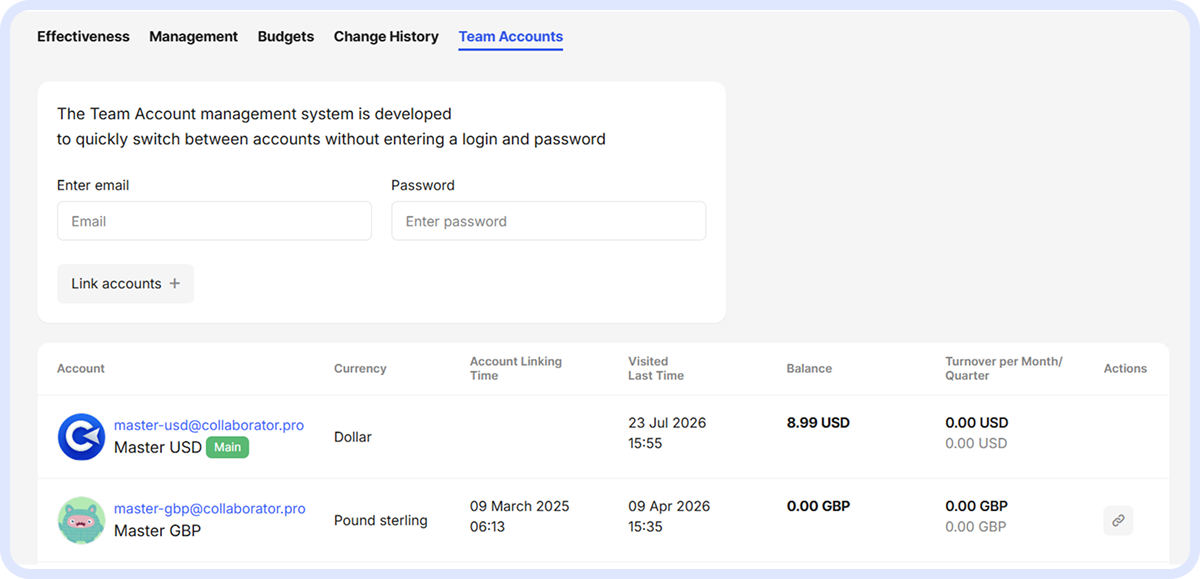
This tab is used for linking accounts. You need to enter the Admin’s email and password to connect the accounts. There are buttons next to the avatar for re-login and to unlink the account.
My Projects
Access to projects is managed in the My Projects section. Under each project's name, you can see the avatars of users who have access to it.
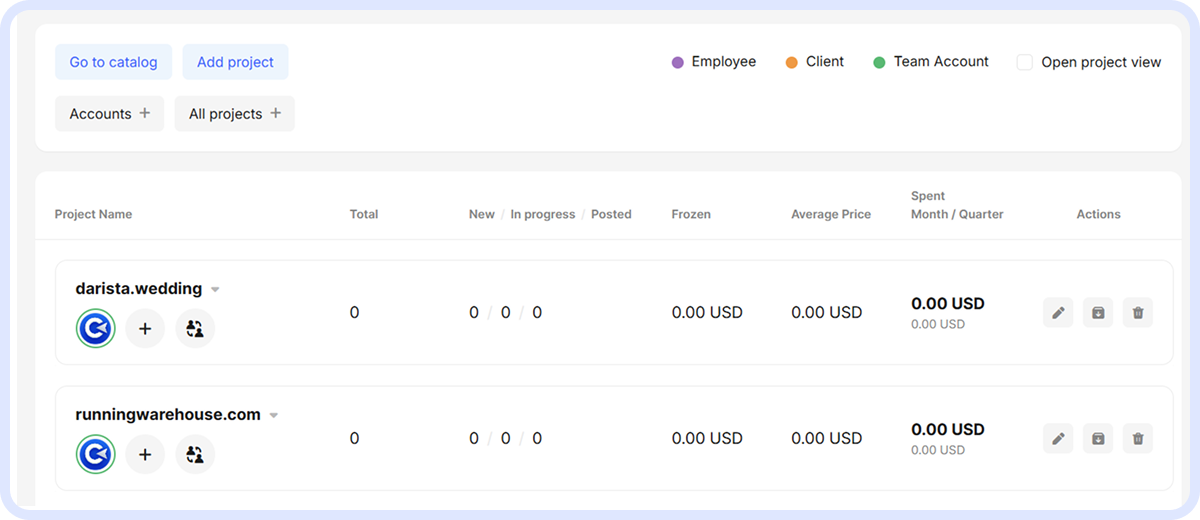
By default, every project shows the avatars of the Admin and the project owner. Avatar colors indicate roles for quick reference. The Admin can add a Colleague to a project and save the changes, after which the added Colleague will see the project and be able to manage it.
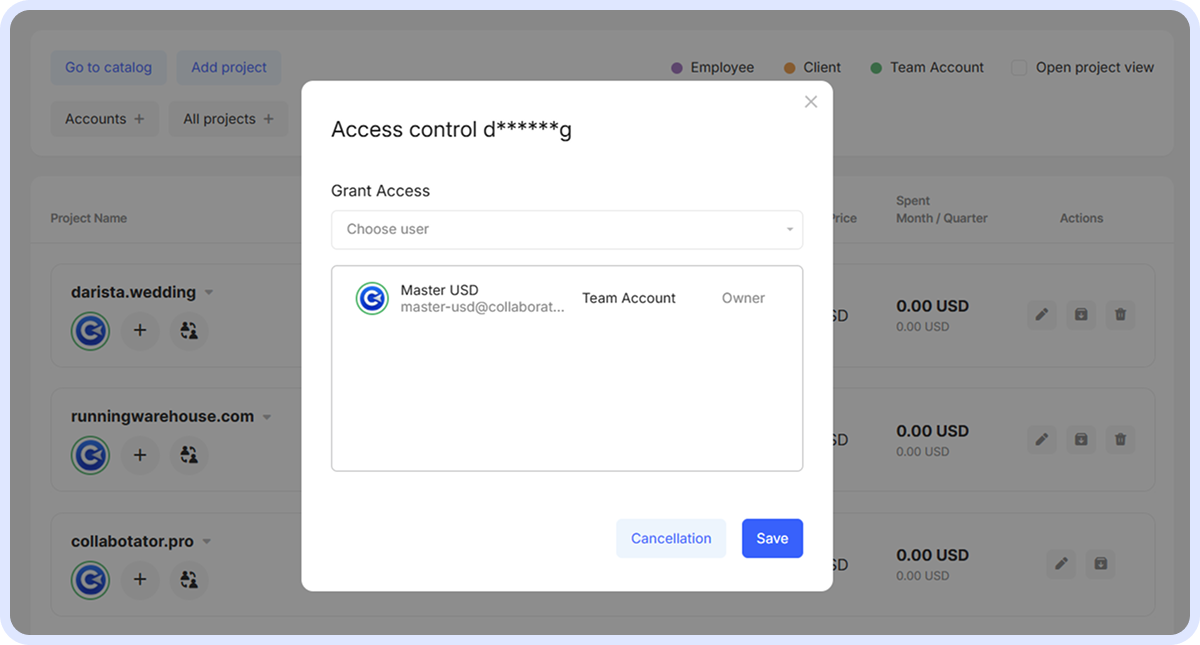
In a client project featuring the avatars of the Client and the Admin, you can revoke a Colleague’s access at any time by clicking Remove and then Save.
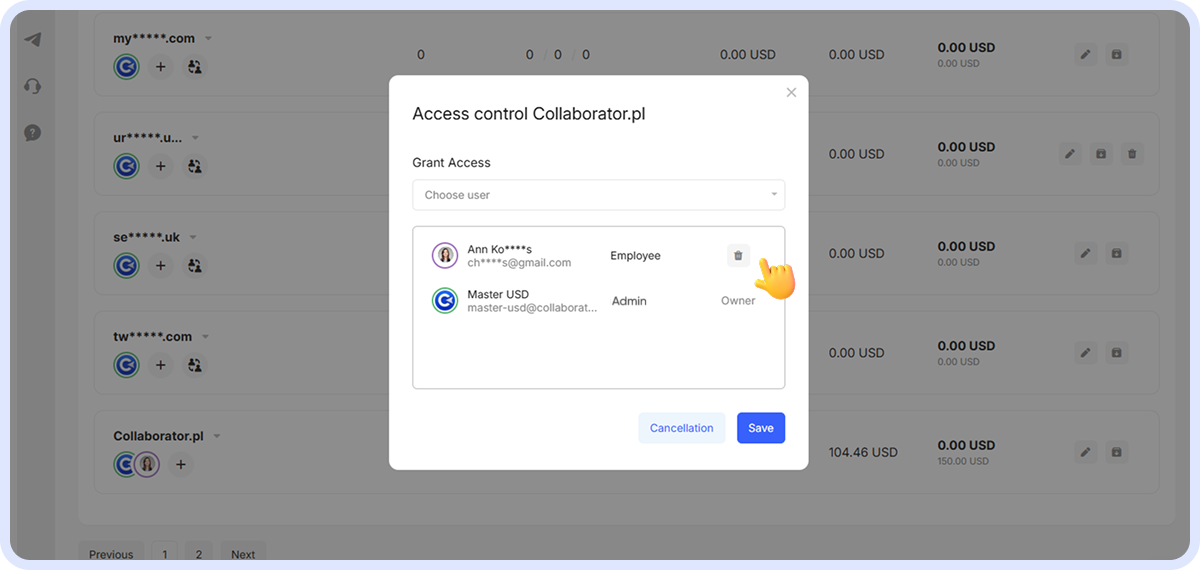
From a Colleague’s account, the project will disappear — they will no longer be able to see or manage it.
For client projects, the Client’s balance is also displayed, so you can see how much each user has in their account and whether there are funds available for purchases. A filter by account has been added for quickly finding projects for a specific Client.
When you enter the project itself, you can manage access, view the client’s balance, and access the Events tab, which records the chronological history of actions at the project level (e.g., creating a deal, adding a completed article to the project, or removing it).
Deals
Within a project or the Dashboard, each deal displays the avatar of the initiator, so it’s immediately clear who created the deal — Admin, Colleague, or Client from their account. There is also an account filter that lets you track the work of a specific team member. For example, you can select a Colleague and view all their deals.
Budget Management
In the role structure, the budget can be managed in two main ways: funds can be added directly to the Team Account and then distributed to Colleagues or Clients, or added directly to Client accounts.
Colleagues cannot top up their accounts independently — only the Admin can transfer funds to them. Withdrawals are also technically restricted for this role.
For Clients, withdrawals are limited as long as their account is linked to the Team Account. Once the Client is unlinked from the account, they can freely deposit and withdraw funds like any regular user.
Managing Project Access
When a Client account is linked to the Team Account, it automatically grants access to all their projects. From the Team Account, you can manage deals, assign tasks, and more. The Admin can also grant a Client's project access to a Colleague and make their own projects available to Colleagues.
The mechanics work as follows:
- when a Colleague or an Admin manages deals for a Client’s project, the Client’s balance is used.
- if a Colleague manages deals for an Admin’s project, their own balance is used.
- the Admin manages their funds within their own projects.
Affiliate Program
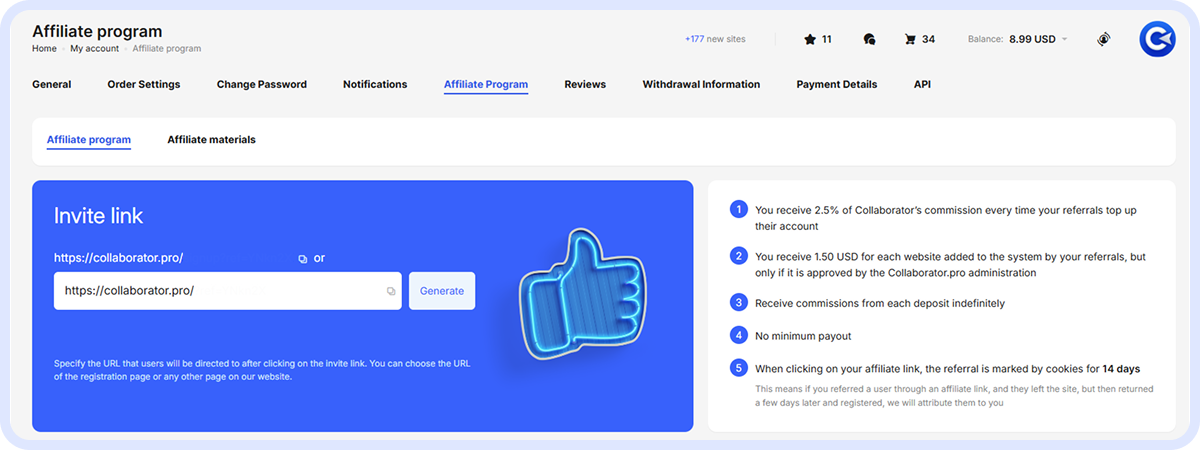
The account structure includes a standard affiliate program. New clients are invited to the system by an Admin. They receive an invitation email from Collaborator, complete registration, and immediately grant the Admin access to their projects (agreeing to be linked under the main account), after which they join the affiliate program.
Without the Team Account functionality, clients can only join the affiliate program by registering via an affiliate link. That’s not the best way for an agency that wants its clients to register seamlessly.
The affiliate program has standard terms: 2.5% of Collaborator’s commission (2.5% of net affiliate revenue from client top-ups).
Dialogues
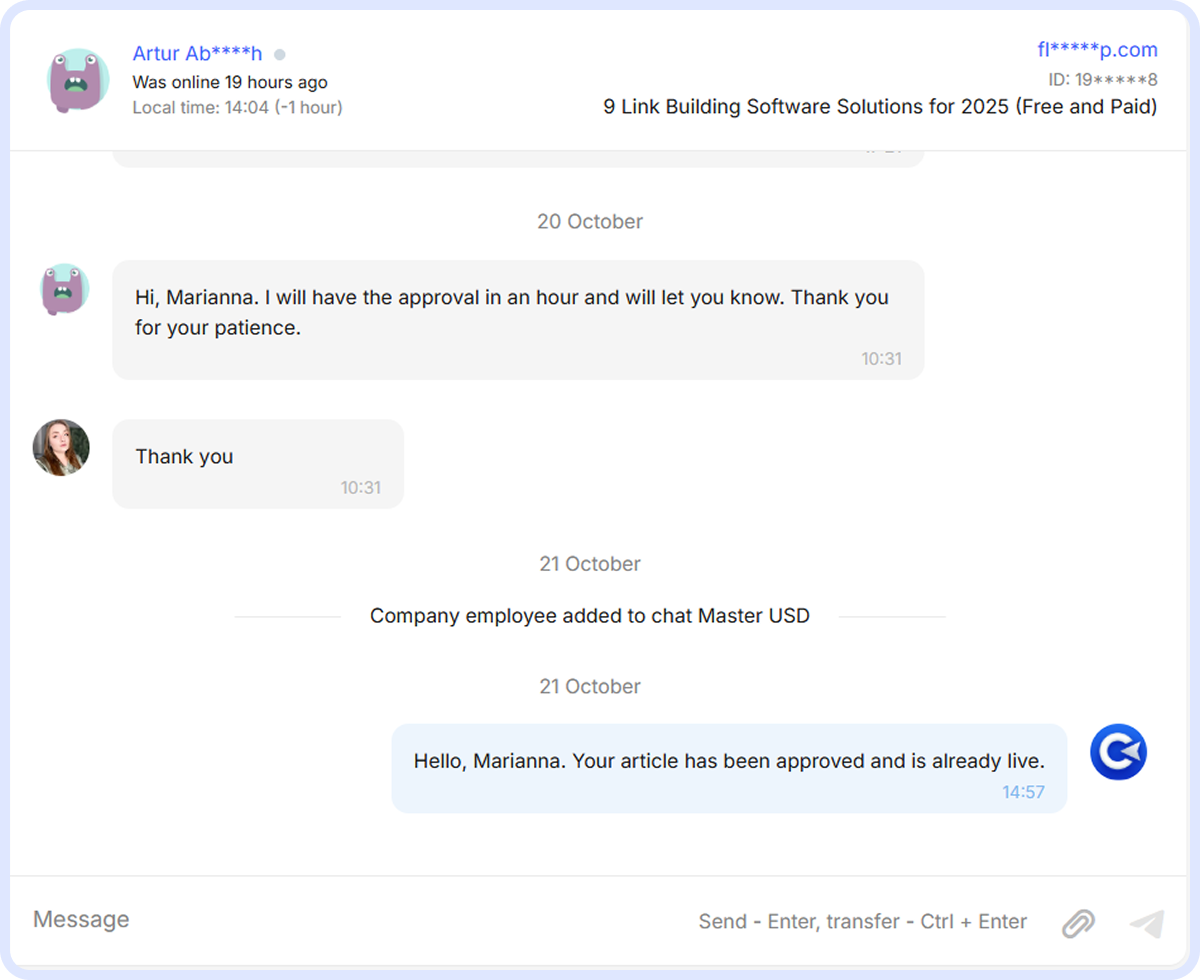
There are some changes to the system’s dialogues. Normally, only two people can communicate about a deal — the client and the project owner. With the Team Account functionality, however, everyone with access to the project (Admin, Colleague) can participate in the conversation.
Cart
The Cart also changes. At the checkout stage, an invoice will appear showing which accounts and how many completed tasks need to be paid for. This is especially relevant for the Client role, as it involves the balances of different clients.
The invoice will also indicate if a Client doesn’t have enough funds — for example, if two tasks are completed, but the balance is insufficient. You can edit this list by removing a deal that can’t be paid at the moment or clearing the entire entry from the invoice.
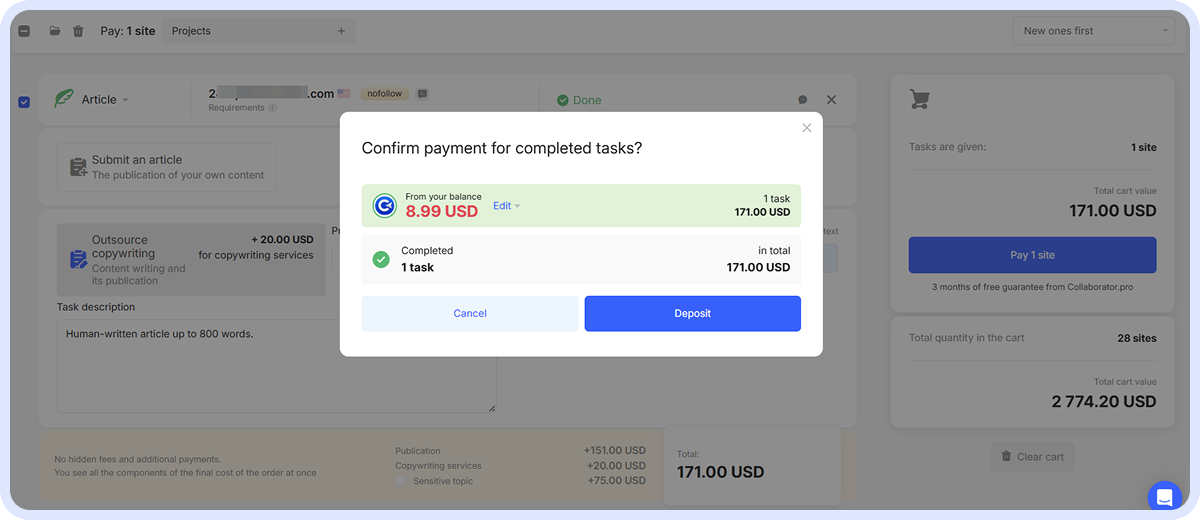
These changes to the Cart apply only when using the Client role. When selecting a project, Admin-owned projects appear standard (project name, created folders); Client-owned projects display the Client’s balance next to their name, visually distinguishing them from the rest of the list. After selecting a Client project, the Client’s balance is immediately pulled up to the Cart level to show whether there are sufficient funds for the deal.
At checkout, an invoice appears, where you can immediately see, for example, that three completed tasks need to be paid from two different balances — one from the Client’s balance and two from the Admin’s balance (here you can choose: if there are enough funds for one deal, the other can be removed). All edits to the invoice are made at the invoice level; for example, if something was removed by mistake, you can return to checkout and everything will be back in place. Tasks removed from the invoice remain completed in the Cart and can be returned to at any time.
Website Catalog
With the functionality enabled, additional discounts are available on placements. They are visible to the Admin and all Colleagues and Clients linked to them — meaning the entire team can benefit. Discounts are activated and managed by the platform owners, who can choose the discount amount and enable or disable it at any time. Deals can be made with the discount while it is active — tasks can be created at the discounted price with the discount locked in.
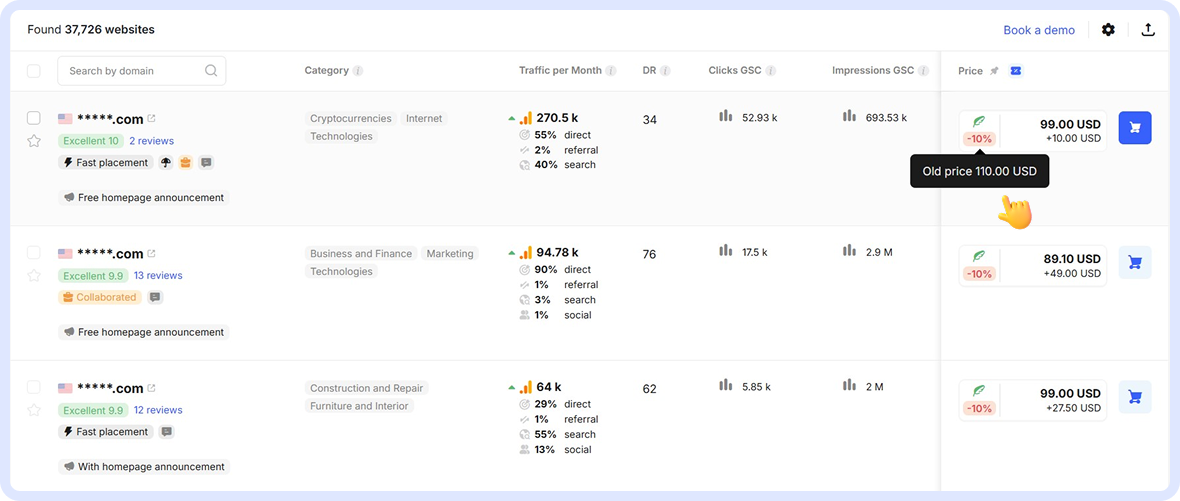
For the Team Account, website exports from the catalog are available, allowing automatic reconnection. Upon request, export can also be enabled for Colleague and Client accounts. This functionality is free to enable. The user must decide which account they want to make the primary Team Account. Once connected, they can manage the account independently and invite Clients and Colleagues.
Stay Informed: Team Account Support via Telegram
Additionally, Team Accounts are offered a Telegram chat for more convenient communication. They are also assigned an account manager to assist with various issues. Users can add their colleagues to the chat as needed — anyone interested in updates about Team Account functionality. The chat is also used to discuss any disputed issues and is designed for faster communication. Individual questions are resolved as quickly as possible in the personal chat.
Have questions? Schedule a demo to explore the Team Account features for your specific needs.
Related reading
- • How to Integrate Collaborator API to Automate SEO and Link Building Workflows
- • New in Collaborator: Automatic Competitor Analysis
- • Collaborator Link Assistant: Free Chrome Extension for Link Building and Backlink Monitoring
- • AI Filtering by Keywords in the Collaborator Catalog: Find Truly Relevant Websites Faster
- • Collaborator Recognized by DesignRush as a Top SEO, Digital Marketing, and PR Company